
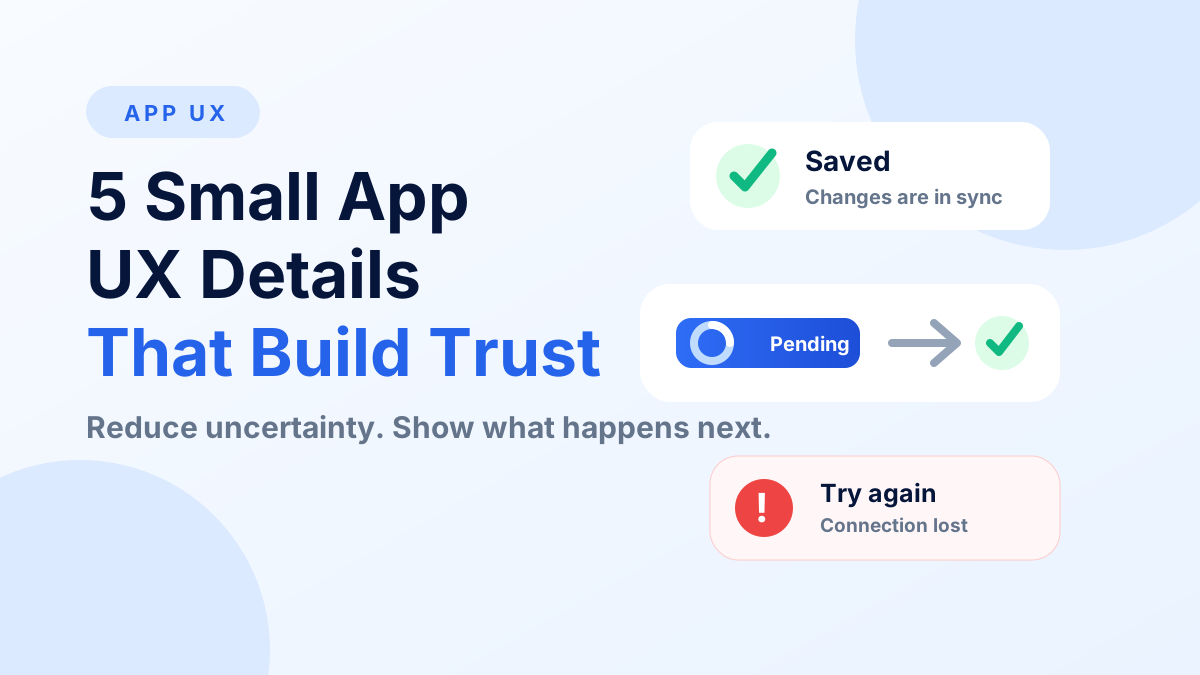
A user taps Pay now and nothing changes.
Did the tap register? Should they tap again? Is the payment still pending? Did it already go through? That moment of uncertainty is small, but it is the same feeling behind many app complaints: the interface is making the user guess.
No individual pattern automatically creates trust. Trust also depends on security, reliability, support, pricing, brand behavior, and the real outcome of the product. But interfaces can support user confidence by reducing unnecessary uncertainty and clearly communicating what the system is doing.
These five details are useful before launch, during QA, and when reviewing a Flutter or mobile app that technically works but still feels unfinished.
1. Show Progress After an Action
When a user starts an action, the interface should acknowledge it quickly. A tap can move through several honest states:
PAY NOW → PROCESSING → PAYMENT SENT
That sequence tells the user three different things: the tap was received, the operation is pending, and the system has reached a confirmed result. Android's progress indicator guidance describes progress indicators as a way to surface the status of operations such as loading, uploading, or long processing. Apple's feedback guidance makes the same broader point: feedback helps people know what is happening, understand results, and avoid mistakes.
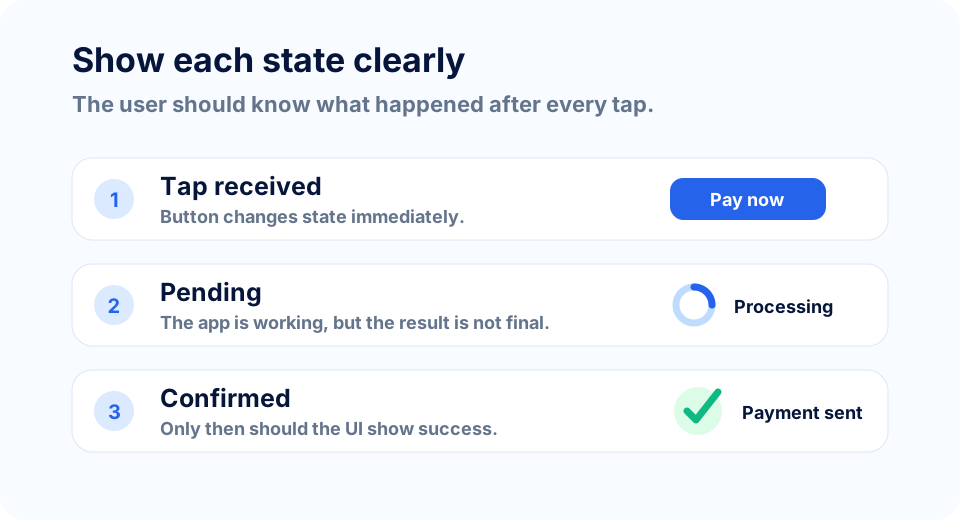
The most important distinction is pending versus completed. A spinner, disabled button, progress bar, or inline "Processing..." label can prevent accidental duplicate taps where duplicate work matters. But it should not imply success before the operation is confirmed to the level appropriate for the system.
Optimistic UI is context-dependent. Flutter's official optimistic state guidance shows how a UI can update immediately and revert if a background task fails. That can work well for low-risk actions, like a favorite or subscription toggle. For payments, irreversible submissions, or security-sensitive actions, users usually need clearer pending and confirmation states.
2. Write Errors That Help Recovery
"Something went wrong" is sometimes all the app knows, but it should not be the default if the system can say more.
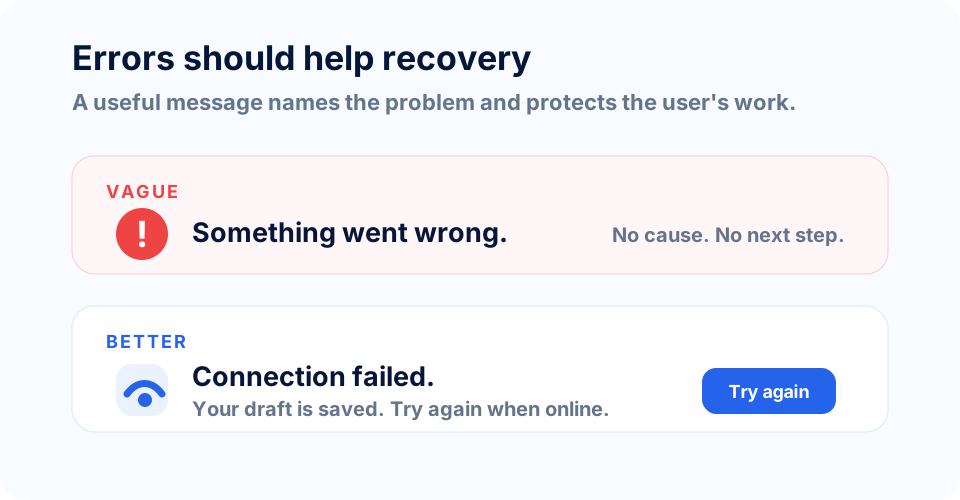
A better error answers three questions:
- What happened, when known?
- What can the user do next?
- Did the app preserve their work?
Compare these:
Vague: Something went wrong.
Better: Check connection. Your draft is still saved. Try again.
W3C's WCAG guidance for Error Identification says detected input errors should be described in text. Error Suggestion goes further: when correction suggestions are known, provide them unless doing so would undermine security or the purpose of the content.
For mobile apps, the same principle applies beyond forms. Avoid dumping backend codes, stack traces, database names, or sensitive implementation details into the UI. Do not blame the user. Preserve entered data where possible, especially after network failures or validation errors. A recovery-focused error should make the next step easier, not make the user start over.
3. Make Save and Sync Status Visible When It Matters
Not every tap needs a banner. If a user opens a filter sheet and chooses a sort option, the result on screen may be enough.
Status matters when uncertainty would otherwise affect user behavior. This is common in apps involving documents, drafts, uploads, offline changes, cloud sync, or background processing. Useful states might include:
- Saving...
- Saved
- Offline
- Waiting to sync
- Sync failed
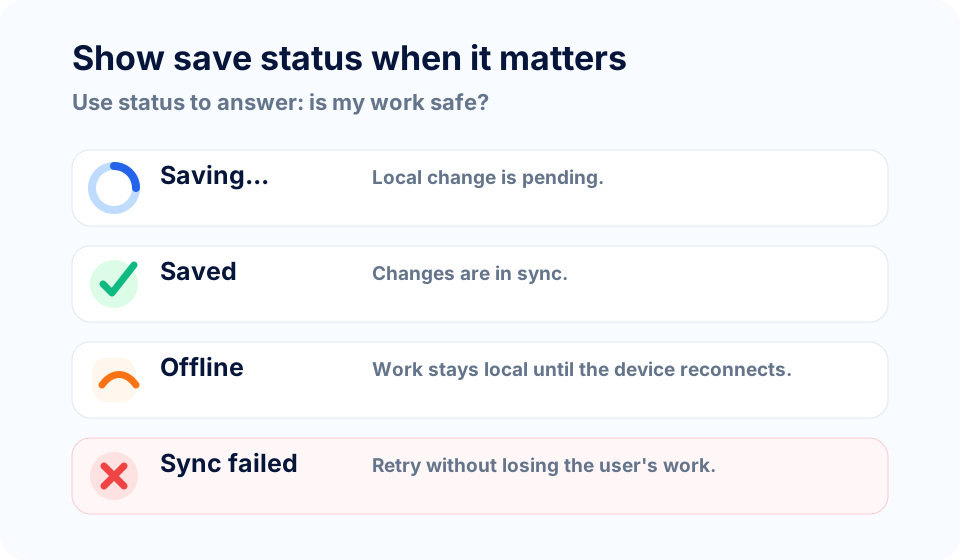
The point is not to decorate the app with constant messages. It is to answer the question the user is likely to ask: "Is my work safe?"
For accessibility, important status changes should not rely on color alone. WCAG Status Messages explains that status updates in markup should be programmatically determinable so assistive technologies can present them without moving focus. In native mobile apps, that same product requirement translates into readable text, meaningful labels, and announcements where appropriate.
4. Give Users Control Around Destructive Actions
Deletion, account removal, irreversible submissions, and destructive edits need thoughtful control. That does not always mean a confirmation dialog.
Use a confirmation step when the action is high-impact or hard to reverse. Use undo when the action is easy to reverse and confirmation would only slow people down. Avoid asking "Are you sure?" for every destructive-looking interaction, because confirmation-dialog fatigue trains people to dismiss warnings without reading.
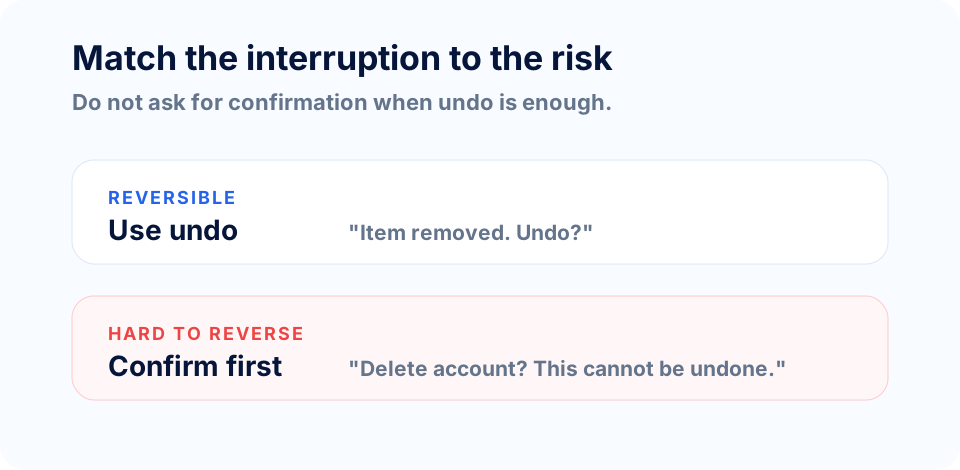
A good destructive action flow should communicate the object, the consequence, and the recovery path:
- "Delete this invoice?" is clearer than "Confirm action?"
- "This cannot be undone" should be reserved for actions that truly cannot be undone.
- If undo is available, show it immediately after the action.
- If the action is risky, make the safe option easy to find.
The interface should reduce surprise. It should not make users feel trapped after one accidental tap.
5. Explain Sensitive Permissions in Context
Permissions are not just technical prompts. They are moments where the user decides whether the app's request makes sense.
Apple's privacy guidance recommends requesting permission only when the app clearly needs access and, ideally, when people use a feature that requires that access. Android's runtime permission guidance says to ask in context, explain why when the reason is not obvious, allow cancellation, and gracefully degrade if permission is denied.
That matters for location, camera, microphone, notifications, photos, and files. A location prompt shown at launch may feel suspicious in a pickup app. The same prompt shown after the user taps "Find nearby pickup points" has context.
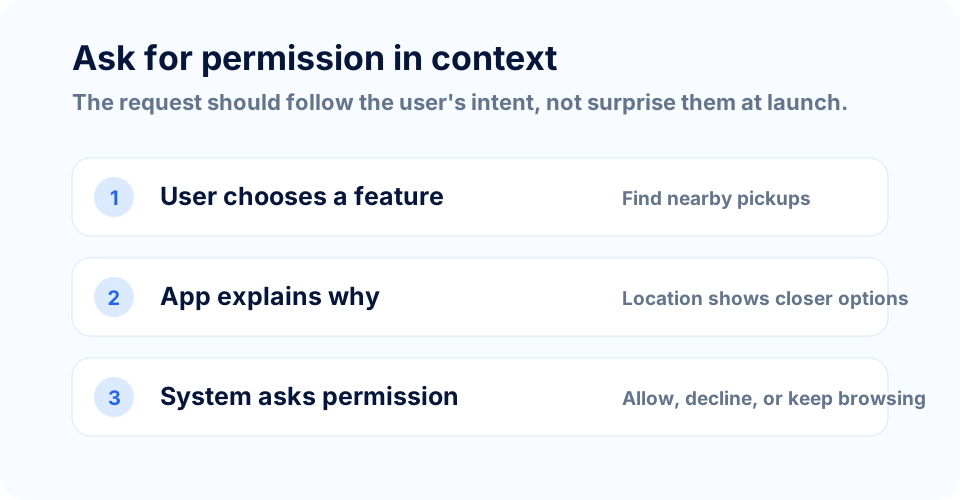
Do not fake or imitate system permission dialogs. Do not pressure users with manipulative copy. Explain the feature value, use the platform permission request, and provide a reasonable alternative path when possible.
One Principle Behind All Five
Good UX removes unnecessary uncertainty.
Progress feedback answers: "Did the app receive my action?"
Recovery-focused errors answer: "What should I do now?"
Save and sync status answers: "Is my work safe?"
Confirmation and undo answer: "Am I still in control?"
Contextual permissions answer: "Why is the app asking for this now?"
None of these details can make a weak product trustworthy by themselves. But they can make a useful product feel more predictable, transparent, and finished.
App Polish Checklist
- [ ] Do actions visibly respond?
- [ ] Can pending and completed states be distinguished?
- [ ] Do errors explain recovery?
- [ ] Is important saved or synced status visible?
- [ ] Are destructive actions appropriately recoverable or confirmed?
- [ ] Are permissions requested in context?
- [ ] Does failure preserve user work where possible?
- [ ] Are status messages accessible beyond color alone?
- [ ] Does the interface avoid claiming success prematurely?
Final Thoughts
A polished interface should not force users to repeatedly ask:
"Did that work?"
Small details matter because they close tiny gaps in understanding. They tell users what happened, what is happening now, and what they can do next.
For more practical product and software guidance, visit the Vast Edge blog. If your team is building a web or mobile app, explore our software development services or contact Vast Edge Services.
References
- Apple Human Interface Guidelines: Feedback
- Apple Human Interface Guidelines: Privacy
- Android Developers: Progress indicators
- Android Developers: Request runtime permissions
- Android Developers: Minimize your permission requests
- Flutter documentation: Optimistic state
- W3C WCAG 2.2: Error Identification
- W3C WCAG 2.2: Error Suggestion
- W3C WCAG: Status Messages