
In most Flutter projects, checking a single UI component means running the entire app, navigating to the right screen, triggering the correct state, and sometimes logging in or mocking API data first. That flow works, but it is slow when the actual task is something simple: Does this button look right? Does this card overflow at small sizes? Does this form field handle the error state properly?
Flutter Widget Previews solve this problem. They let developers render and inspect individual widgets separately from the full app flow, directly in the IDE or browser. If you are building a Flutter app or working on mobile app development, Widget Previews are worth adding to your workflow.
What Are Flutter Widget Previews
Widget Previews are a stable feature in Flutter, available since Flutter 3.47. They allow developers to annotate functions that return a widget and have those widgets rendered in a dedicated preview environment, separate from the running application.
The preview environment runs on Flutter Web. When a developer opens the previewer, it scans the project for @Preview annotations and displays each annotated widget. No full app launch is needed.
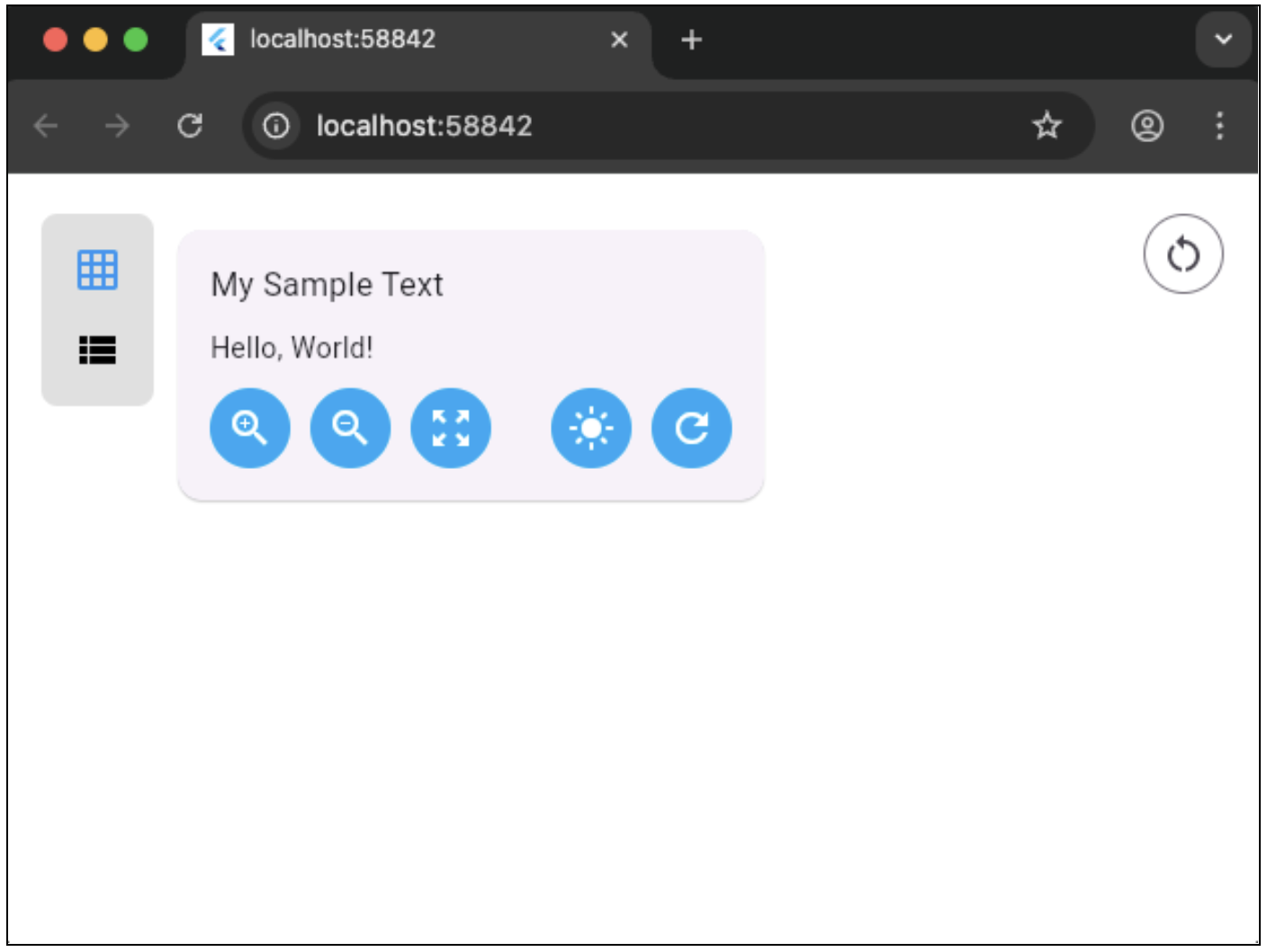
A basic Flutter widget preview looks like this:
import 'package:flutter/material.dart';
import 'package:flutter/widget_previews.dart';

@Preview(name: 'Submit Button')
Widget submitButtonPreview() {
  return const MaterialApp(
    home: Scaffold(
      body: Center(
        child: ElevatedButton(
          onPressed: null,
          child: Text('Submit'),
        ),
      ),
    ),
  );
}
The @Preview annotation is imported from package:flutter/widget_previews.dart. It can be applied to top-level functions, static methods within a class, and public widget constructors or factories that have no required arguments.
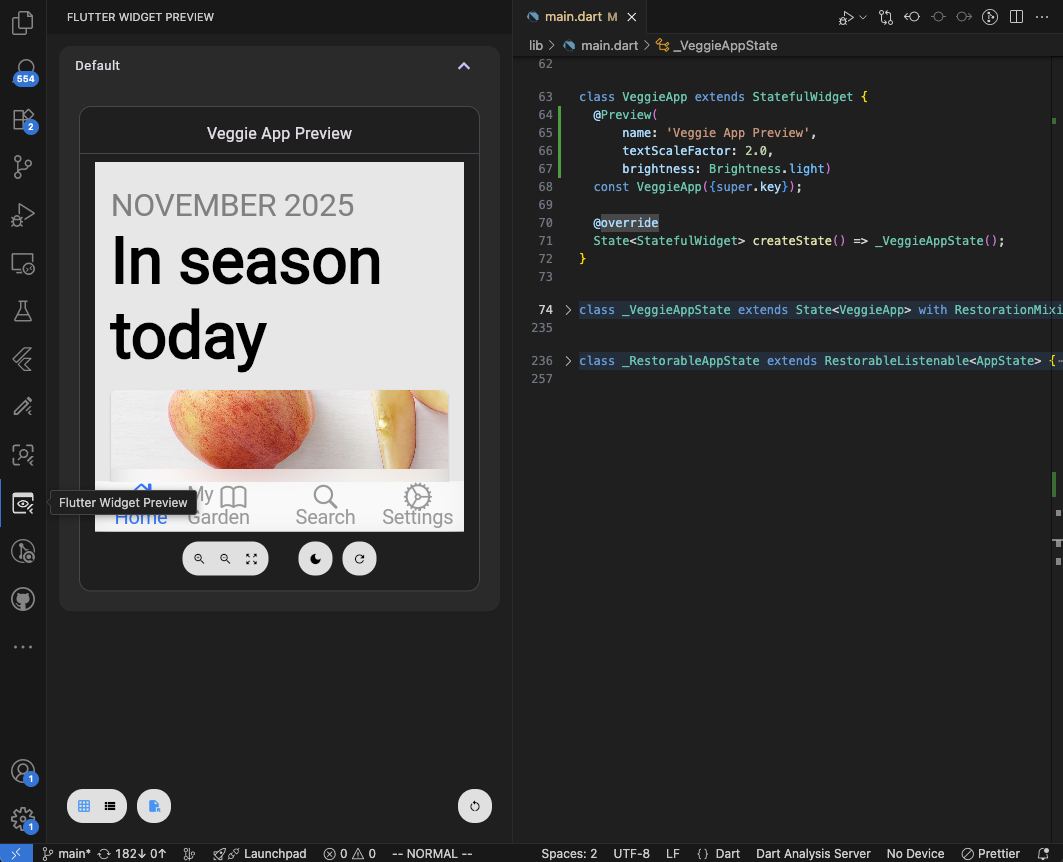
The previewer works in Android Studio, IntelliJ, and VS Code, where it starts automatically. It also works from the command line using flutter widget-preview start, which launches a local server and opens a browser-based preview environment.

Why Widget Previews Matter for Flutter UI Testing
The core benefit is speed. Instead of navigating through several screens to reach a single component, a developer can see the widget rendered immediately. This matters most when iterating on layout, reviewing different states, or building reusable components.
Practical advantages of widget previews for UI testing include:
- Faster visual checks during development without running the full app
- Less navigation and setup just to reach one UI state
- Easier review of small, reusable components in isolation
- Better visibility into different widget states like loading, error, and empty
- Earlier detection of spacing, overflow, and text scaling issues before they reach production
For teams building design systems or shared component libraries, previews provide a lightweight way to document how a widget should look without writing separate documentation pages.
Where Widget Previews Help Most in Flutter Development
Widget Previews are most useful for components that are small enough to render in isolation and benefit from visual inspection. Common cases include:
- Buttons and form controls across different states (enabled, disabled, focused)
- Cards, list items, and content blocks at various sizes
- Empty states and error states that are hard to reach in the normal app flow
- Loading indicators and skeleton screens that appear briefly
- Design system components like typography, spacing, and color swatches
- Responsive UI checks by setting different preview sizes
The @Preview annotation supports customization parameters like size, textScaleFactor, brightness, and theme, which make it practical to test how a widget behaves under different conditions without writing separate code paths.
@Preview(
  name: 'Card - Small Screen',
  size: Size(320, 568),
)
Widget smallCardPreview() {
  return const MaterialApp(
    home: Scaffold(
      body: Padding(
        padding: EdgeInsets.all(16),
        child: OrderCard(orderNumber: '1234'),
      ),
    ),
  );
}
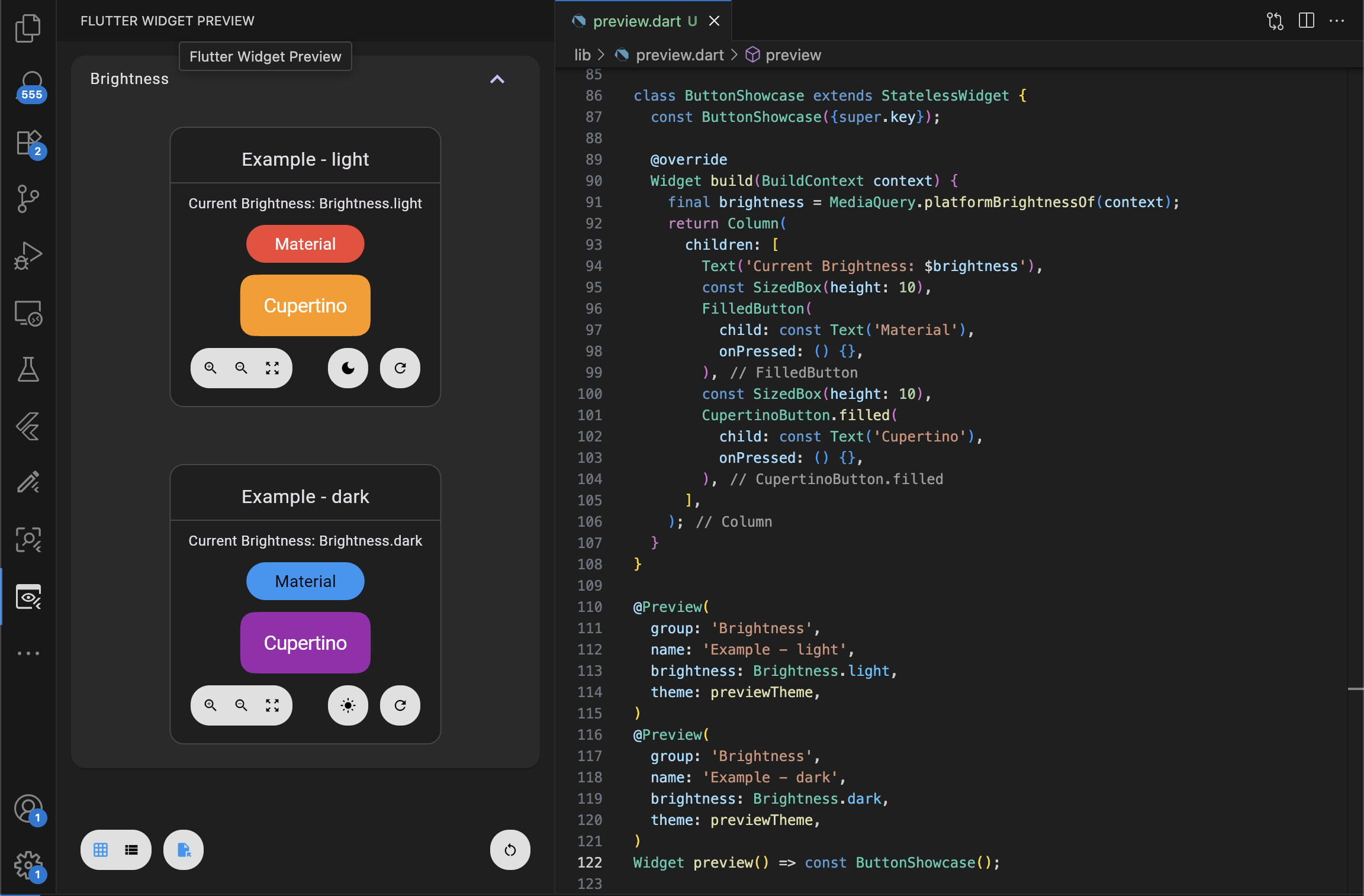
You can also stack multiple @Preview annotations on a single function to generate several preview configurations at once:
@Preview(name: 'Light Mode', brightness: Brightness.light)
@Preview(name: 'Dark Mode', brightness: Brightness.dark)
Widget themePreview() {
  return const MaterialApp(
    home: Scaffold(
      body: Center(child: Text('Theme Preview')),
    ),
  );
}
Using MultiPreview for Complex Scenarios
For teams that need to preview the same widget across many configurations, the MultiPreview class offers a cleaner approach. You can create a custom annotation that generates multiple previews from a single function:
final class BrightnessPreview extends MultiPreview {
  const BrightnessPreview();

  @override
  final List<Preview> previews = const <Preview>[
    Preview(name: 'Light', brightness: Brightness.light),
    Preview(name: 'Dark', brightness: Brightness.dark),
  ];
}

@BrightnessPreview()
WidgetBuilder brightnessPreview() {
  return (BuildContext context) {
    final theme = Theme.of(context);
    return Text('Brightness: ${theme.brightness}');
  };
}
This reduces duplication when the same widget needs to be tested across multiple themes, sizes, or localization configurations.
What Widget Previews Do Not Replace
This is the part that matters for teams evaluating Widget Previews honestly. They are a UI iteration tool, not a testing strategy. Specifically, Flutter widget previews do not replace:
- Widget tests that verify behavior, state changes, and interaction logic
- Integration tests that cover complete user flows across screens
- Real device testing where platform-specific rendering, performance, and gestures matter
- API and data flow testing that validates how the app handles network responses, errors, and offline states
- Navigation testing that checks routing, deep linking, and screen transitions
- Performance profiling that identifies jank, memory issues, or build time problems
Because the preview environment runs on Flutter Web, it also does not support native plugins, dart:io, or dart:ffi APIs. Widgets that depend on these will load, but any calls to unsupported APIs will throw exceptions at runtime. If your widget depends on platform-specific functionality, the preview may not represent the real behavior on Android or iOS.
Think of Widget Previews as a complement to your existing testing workflow, not a replacement for it.
How Widget Previews Fit Into a Flutter Workflow
A practical workflow that includes Widget Previews might look like this:
- Build the reusable widget with clear inputs and minimal dependencies on app-wide state
- Add a
@Previewannotation to check layout, spacing, and visual states - Review different configurations using multiple annotations or the
MultiPreviewclass for brightness, size, and theme variations - Run widget tests to verify behavior and state logic
- Test on real devices for full flows, platform-specific rendering, and performance
The preview step happens early and often. It reduces the friction of visual iteration, which means developers spend less time waiting for the app to build and navigate, and more time refining the component itself.
The Widget Previewer also includes search and filtering, which helps when working on projects with many annotated previews. You can filter by preview name, group, file, or package. In supported IDEs, there is an option to filter previews based on the currently selected file, which makes it easy to focus on the component you are actively editing.

Common Mistakes to Avoid With Widget Previews
Several patterns can reduce the value of Widget Previews if not handled carefully.
Using previews as a replacement for real testing. Previews check appearance, not behavior. A widget can look correct in a preview while having broken interaction logic.
Previewing only the happy path. A button in its default state is easy to preview. The more valuable previews are often the ones showing error states, empty lists, long text that might overflow, or disabled states.
Ignoring loading and error states. These are the states that users actually see when something goes wrong, and they are often the most neglected in UI development.
Building components too tightly coupled to app state. If a widget cannot render without a specific provider, repository, or global state, it becomes harder to preview. Widgets with clear inputs and minimal external dependencies are easier to preview and test.
Not wrapping widgets with required context. The preview environment needs MaterialApp, themes, or other inherited widgets to render correctly. Forgetting to provide these wrappers results in rendering errors that have nothing to do with the widget itself.
Skipping real device testing after previewing. A preview that looks good in the browser does not guarantee the same result on a physical device, especially for platform-specific widgets or layouts that depend on device-specific constraints.
Frequently Asked Questions About Flutter Widget Previews
Are Flutter Widget Previews stable?
Yes. Widget Previews are a stable feature in Flutter as of version 3.47. They are not experimental and are supported in Android Studio, IntelliJ, VS Code, and the command line.
Can I use Widget Previews with native plugins?
Not reliably. The preview environment runs on Flutter Web, which does not have access to dart:io, dart:ffi, or native platform APIs. Widgets that depend on these will load, but unsupported API calls will throw exceptions at runtime.
Do Widget Previews replace widget tests?
No. Previews are for visual inspection of UI components. Widget tests verify behavior, state changes, and interaction logic. Both are part of a complete Flutter testing strategy.
How do I preview widgets with theme or localization dependencies?
The @Preview annotation supports theme, brightness, wrapper, and localizations parameters. You can also create custom preview annotations by extending the Preview or MultiPreview class.
Final Thoughts
Flutter Widget Previews are a practical addition to Flutter's development toolkit. They make small UI iteration faster and reduce the overhead of checking individual components. They work best when used as part of a broader workflow that includes widget tests, integration tests, and real device validation.
The feature is stable as of Flutter 3.47, works across major IDEs and the command line, and supports customization for size, theme, brightness, and localization. The main limitation is that the preview environment runs on Flutter Web, so native plugins and platform-specific APIs are not fully supported.
For app development and business software support, visit Vast Edge Services or get in touch to discuss your next project.